From redacted documents to a finished exhibit bundle
Binder bundles a project’s redacted documents into one PDF – in the order you choose, split into volumes, with a cover page, table of contents, page numbers and exhibit stamps. When a document is redacted again, the binder takes the new version.
- Built from the redacted versions
- Follows every new redaction
- Checked against court requirements
- 1combined PDF with a bookmark for every volume and document
- 4languages for cover, contents, page numbers and stamps
- 250 MBportal limit – you are warned before you upload
- 0scripts, attachments or external links in the PDF
The redaction is done. The exhibit bundle isn’t.
Once the documents are redacted, the manual work begins: files are merged in Acrobat, exhibits are stamped and numbered, the table of contents is typed by hand – and the page numbers are only right until someone changes the order.
Binder makes that last step part of the same workflow. The binder is built straight from the project’s redacted documents and keeps up when one of them is redacted again.
Built from the redacted files
Pick the documents in the project – the binder uses the redacted version, never the original.
Changes come through
When a document is redacted again, the binder takes the new version by itself.
Checked before it leaves the building
The binder warns about unredacted documents, pages without a text layer and files too large for the portal.
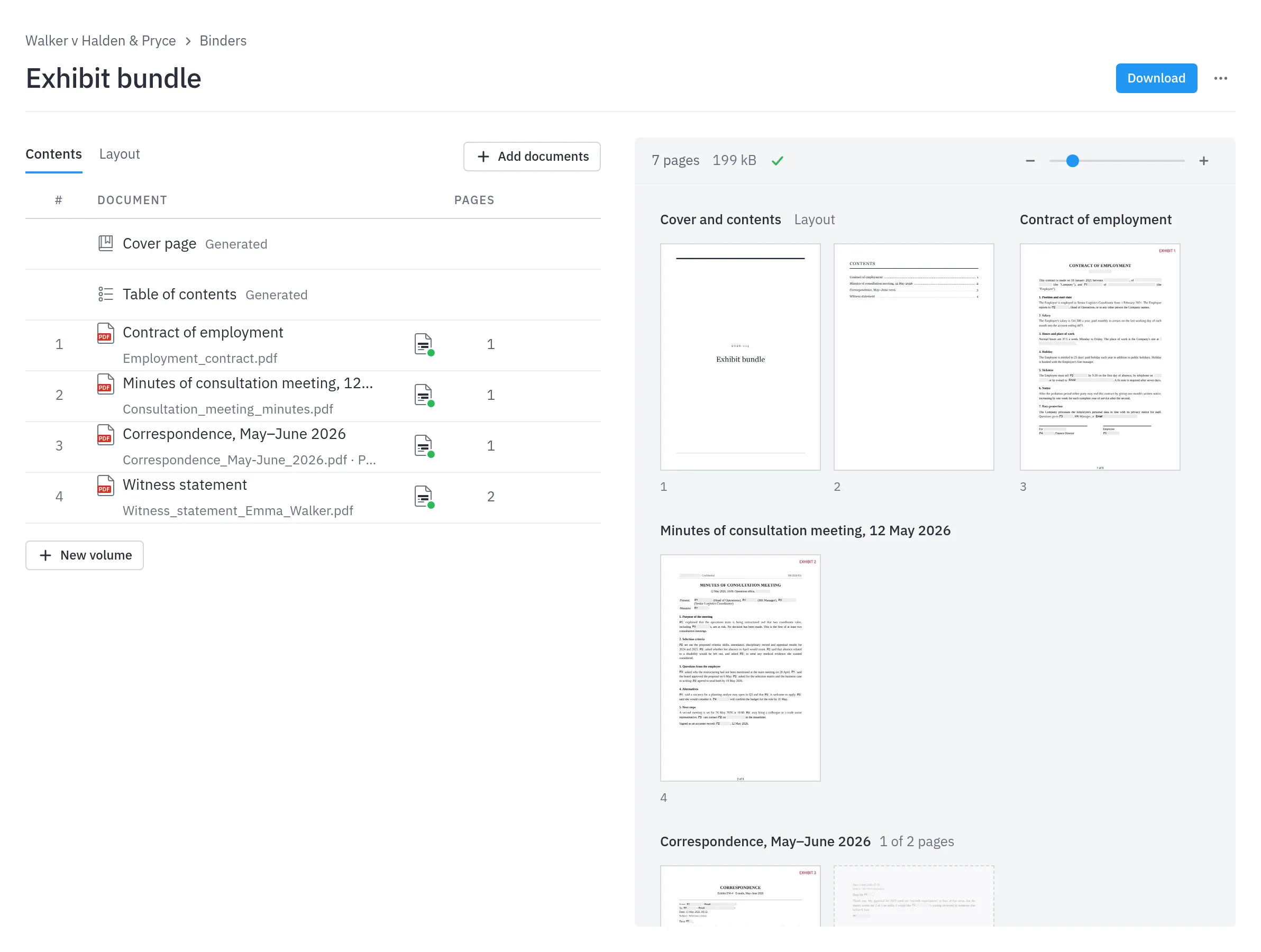
Many redacted files become one PDF with a cover, contents and stamps.
Five steps – right inside the project
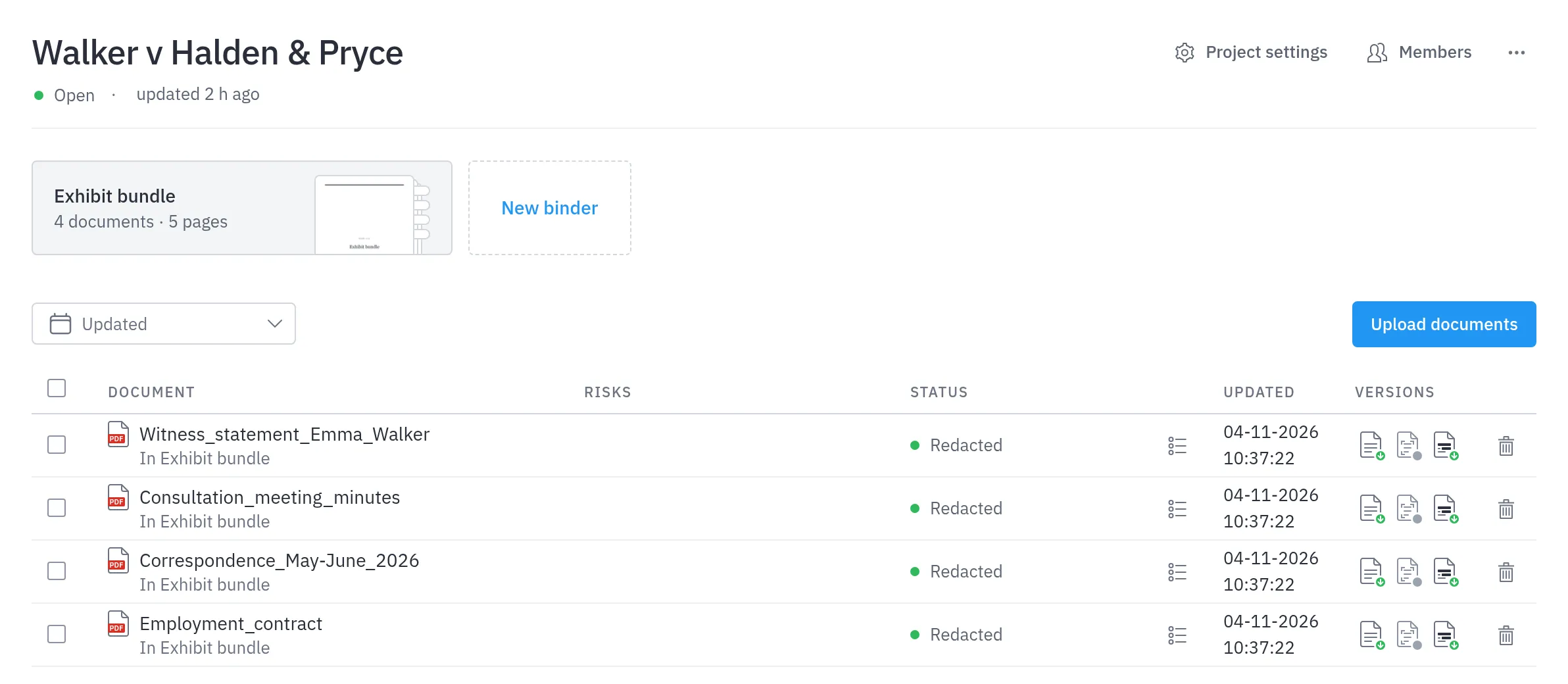
A binder belongs to a project and uses the project’s documents and members. No exporting, no merging, no extra software.
- 1
Create a binder
Give it a title, e.g. “Exhibit bundle”, and optionally start from a template with your standard layout.
- 2
Choose the documents
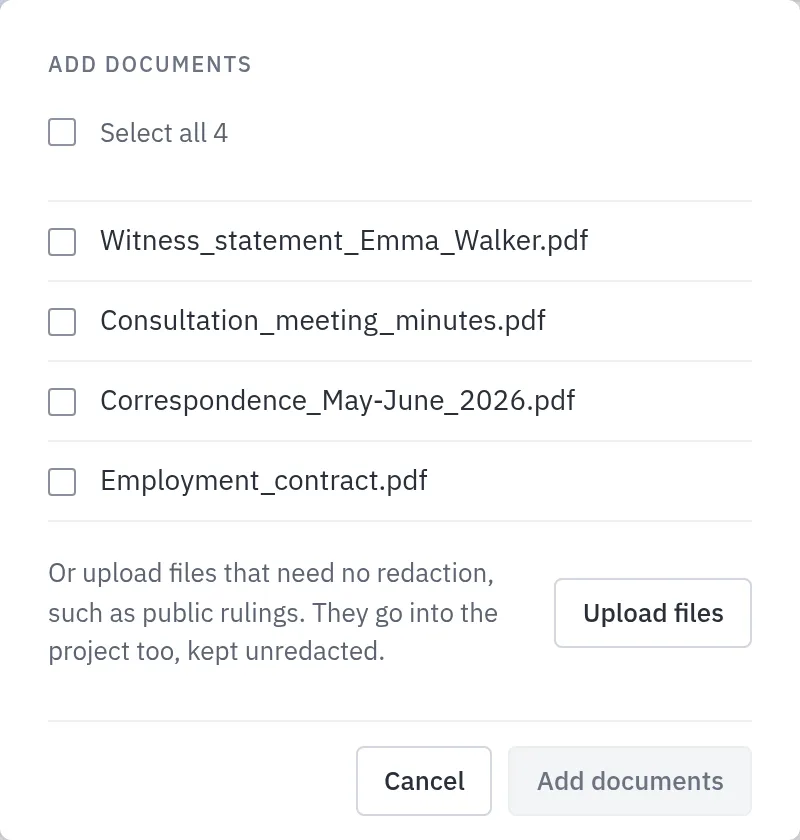
Pick from the project’s redacted documents – or upload files that need no redaction, such as public rulings.
- 3
Set the order
Drag documents into place, split them into volumes, and leave out or move single pages – without touching the redacted document.
- 4
Choose the layout
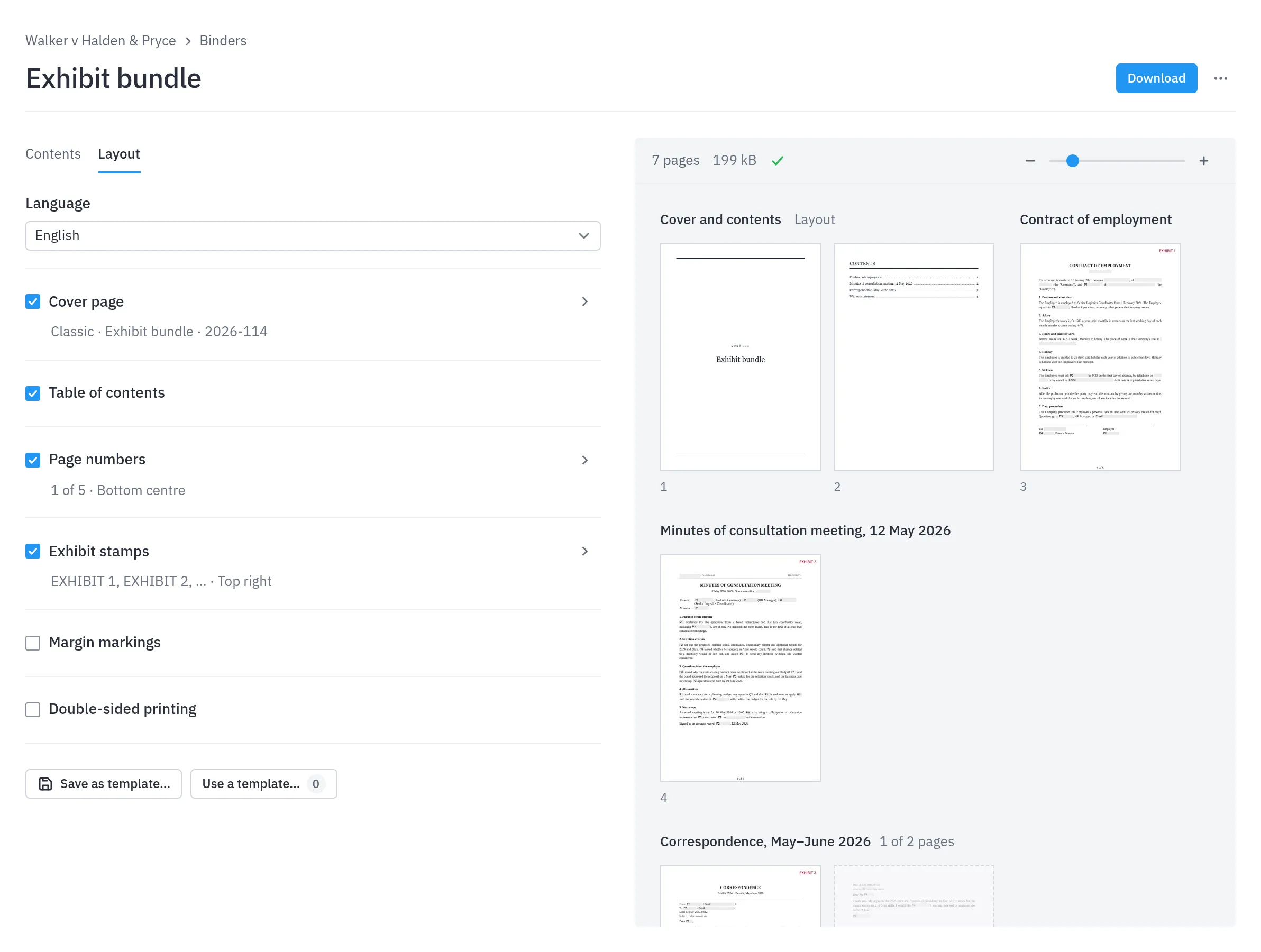
Cover page, table of contents, page numbers, exhibit stamps and margin markings. The preview shows the result straight away.
- 5
Download
One PDF with bookmarks for every volume and document. It downloads once the PDF matches the binder, so what you file is what you see.
Only fully redacted documents can be picked – the rest are listed with the reason.
What Binder looks like
What the court expects – without opening Acrobat
Switch on the parts you need. The texts follow the binder’s language: Danish, English, Norwegian or Swedish.
Cover page
Classic or minimal. Title, subtitle, case number, parties, author and date.
Table of contents
The documents with dotted leaders and their first page – with or without volume headings.
Page numbers
“1”, “1 of 142”, “Page 1”, roman numerals or your own text. Six positions, and numbering can restart in each volume.
Exhibit stamps
EXHIBIT 1, 2, 3 – or A, B, C or I, II, III – on the first page of every document. Choose the start number, colour and an optional logo, and change or drop the stamp per document.
Margin markings
E.g. “CONFIDENTIAL” running down the left or right margin of every page.
Bookmarks
A bookmark for every volume and document, so the recipient can navigate the PDF directly.
Double-sided printing
Blank pages are inserted so the first document, and each volume, starts on a front page.
Four languages
Danish, English, Norwegian and Swedish. The default texts switch along – any text you have edited yourself stays as it is.
Save the layout once – use it in every case
Save the cover, contents, page numbers, stamps, markings, language and print settings as a template. New binders can start from it, and existing ones can take it on – the documents stay where they are.
- Personal templates, or shared with the whole organisation
- One layout per court, client or case type
- Switch templates without losing the documents
The binder keeps up with the case
Cases change until the last minute. Binder is built so a change costs seconds – not another round in Acrobat.
Redacted again? It comes in by itself
The binder keeps its own copy of every document. When a document in an open project is redacted again, the binder swaps in the new redaction and is assembled again. A redaction still in review is not taken.
The real pages while you work
Changes show on the pages at once, and layout changes reach the PDF a moment later. After you move, add or leave out documents and pages, Update brings the PDF along – or leave the binder, and it catches up on its own.
Leave out pages without touching the document
Drop a blank or irrelevant page right in the preview, or move pages within a document. The redacted document is unchanged, and “Put back” undoes it.
Built for the courts’ filing portal
Binder was built for uploading to the Danish courts’ case portal, minretssag.dk. What the portal won’t accept is removed when the binder is assembled – and what only you can fix, you are warned about before you download.
Always check the court’s current guidance before filing.
Handled automatically
Embedded font
Page numbers, stamps and markings are drawn in a font that is embedded in the PDF.
No active content
JavaScript, attached files, media and links out of the document are removed. Bookmarks and internal links are kept.
No encryption
PDFs that are only locked against editing are unlocked. Files that need a password to open are refused with an explanation.
Clean file name
The file is named after the binder’s title, stripped of characters that cause trouble on upload.
You are warned
Over 250 MB
If the PDF grows past the portal’s limit, the binder says so, so you can leave out pages or compress large scans.
No text layer
Documents where no page has searchable text are flagged, so scans can be OCR-processed before they are filed.
Not redacted
If the binder contains documents that have not been redacted, you confirm before downloading – the PDF won’t say so itself.
Frequently asked questions
Which documents can go into a binder?
The project’s redacted documents, as long as they are not encrypted. You can also upload files straight into the binder that need no redaction – such as public rulings – as PDF, Word, Excel or PowerPoint. Office files are converted to PDF, and uploaded files are marked “Not redacted” in the binder.
What happens when a document is redacted again?
In an open project, the binder takes the new redaction by itself and is assembled again. A redaction still in review is not taken: until it is approved, the binder keeps the copy it has, and you are told so when you download. Documents deleted from the project are flagged. In a closed project, the binder stays as it is.
Can the binder be uploaded to minretssag.dk?
That is what Binder was built for: active content and encryption are removed, page numbers and stamps are drawn in an embedded font, and you are warned if the file exceeds 250 MB or if documents lack a text layer. Always check the court’s current guidance before filing.
Can we split the bundle into several volumes?
Yes. Volumes are named groups of documents. Each gets its own bookmark and heading in the table of contents, page numbering can restart in every volume, and with double-sided printing each volume starts on a front page. The result is still one combined PDF.
Can we reuse a layout from case to case?
Yes. Save the binder’s layout – cover, contents, page numbers, stamps, markings, language and print settings – as a template, either for yourself or shared with the whole organisation. New binders can start from the template, and existing ones can take it on without losing their documents.
Who can see and edit a binder?
Every member of the project the binder belongs to. When the project is closed, the binder becomes read-only just like the project’s documents. Deleting a binder does not affect the project’s documents.
Which languages can the binder be written in?
Danish, English, Norwegian and Swedish. The language controls the fixed texts in the PDF – e.g. “1 of 142”, “EXHIBIT”, “CONFIDENTIAL” and the table-of-contents heading. When you switch language the default texts follow, while texts you have edited yourself stay as they are.
Build your next exhibit bundle in minutes
Book a demo where we bundle redacted documents into a finished binder together with you – with a cover page, table of contents, page numbers and stamps.
- No obligation
- We build a binder together with you
- Answers on pricing and setup