Working in projects
A project gathers a case’s documents, the people working on it and the rules its documents are redacted by. A project follows your organisation’s settings until you change something, and only what you change applies to the project alone.
The project overview
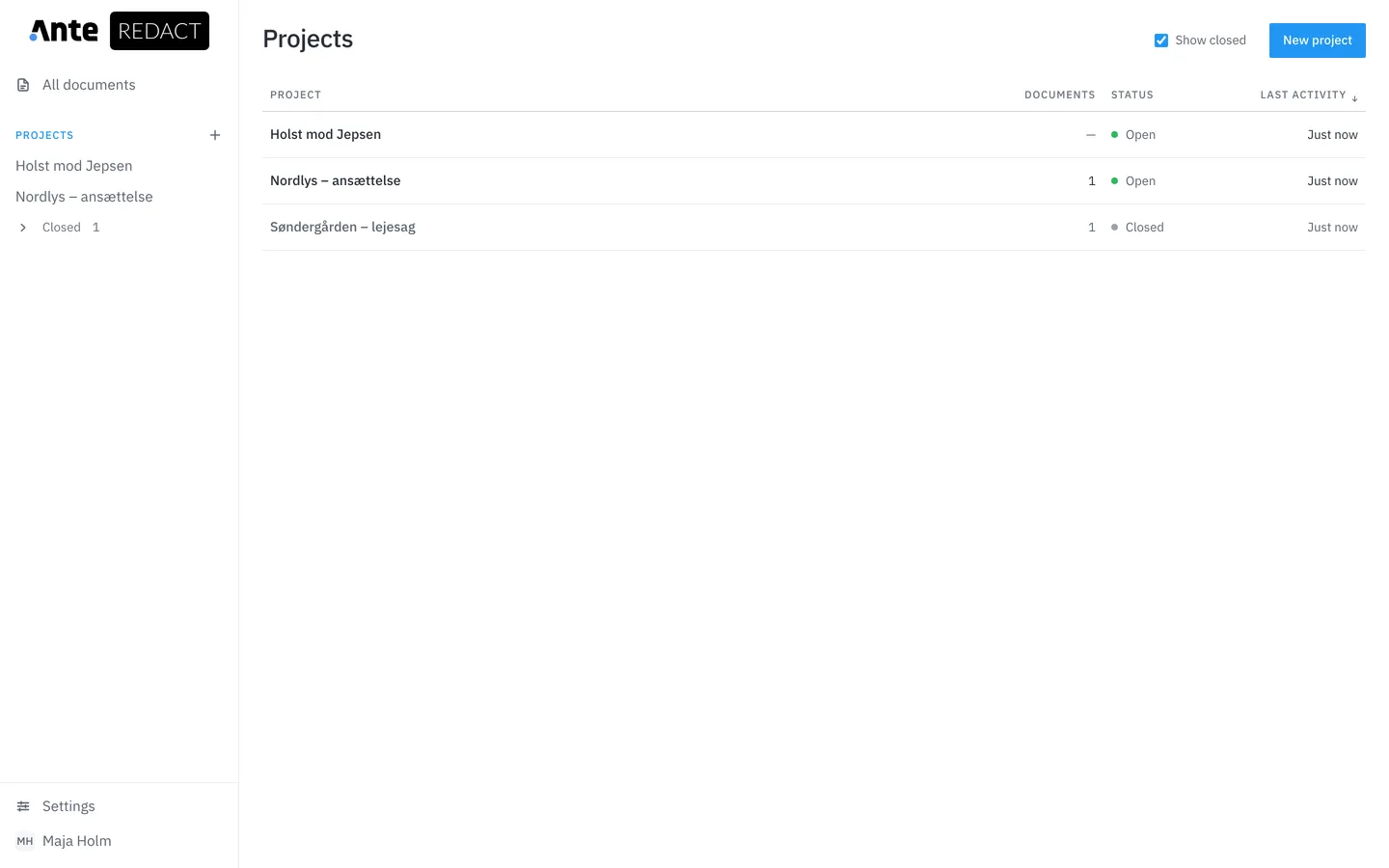
Your projects are listed under Projects in the menu on the left. The Projects page shows them all with their number of documents, status and latest activity.
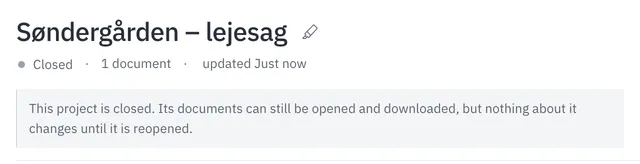
Closed projects are collected under Closed in the menu. On the overview, tick Show closed to see them.
Create a project
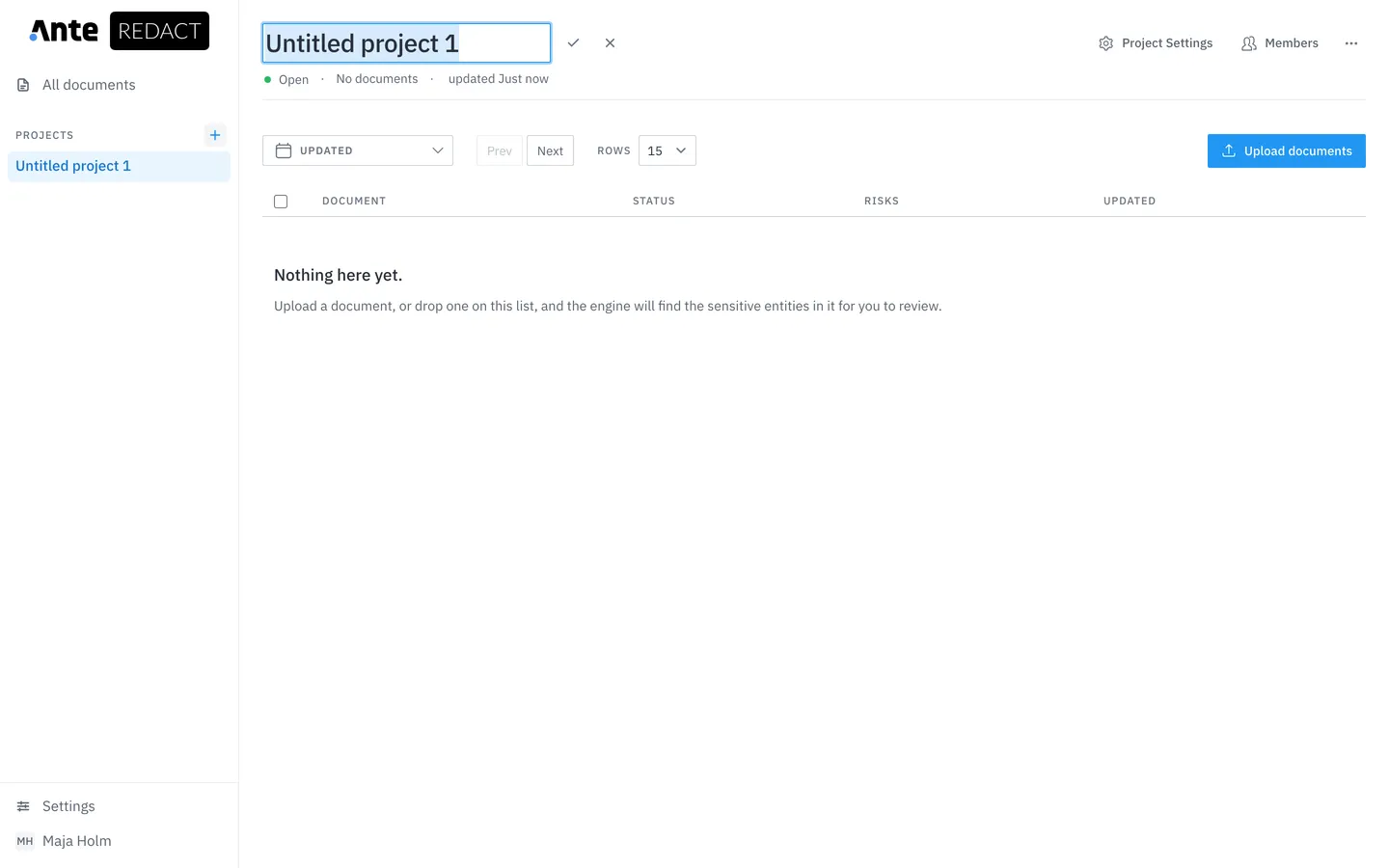
Click next to Projects in the menu, or New project on the overview. The project is created straight away with its name field ready: type the case name and press Enter.
You can rename the project at any time with the pencil next to its name.
Upload to the project
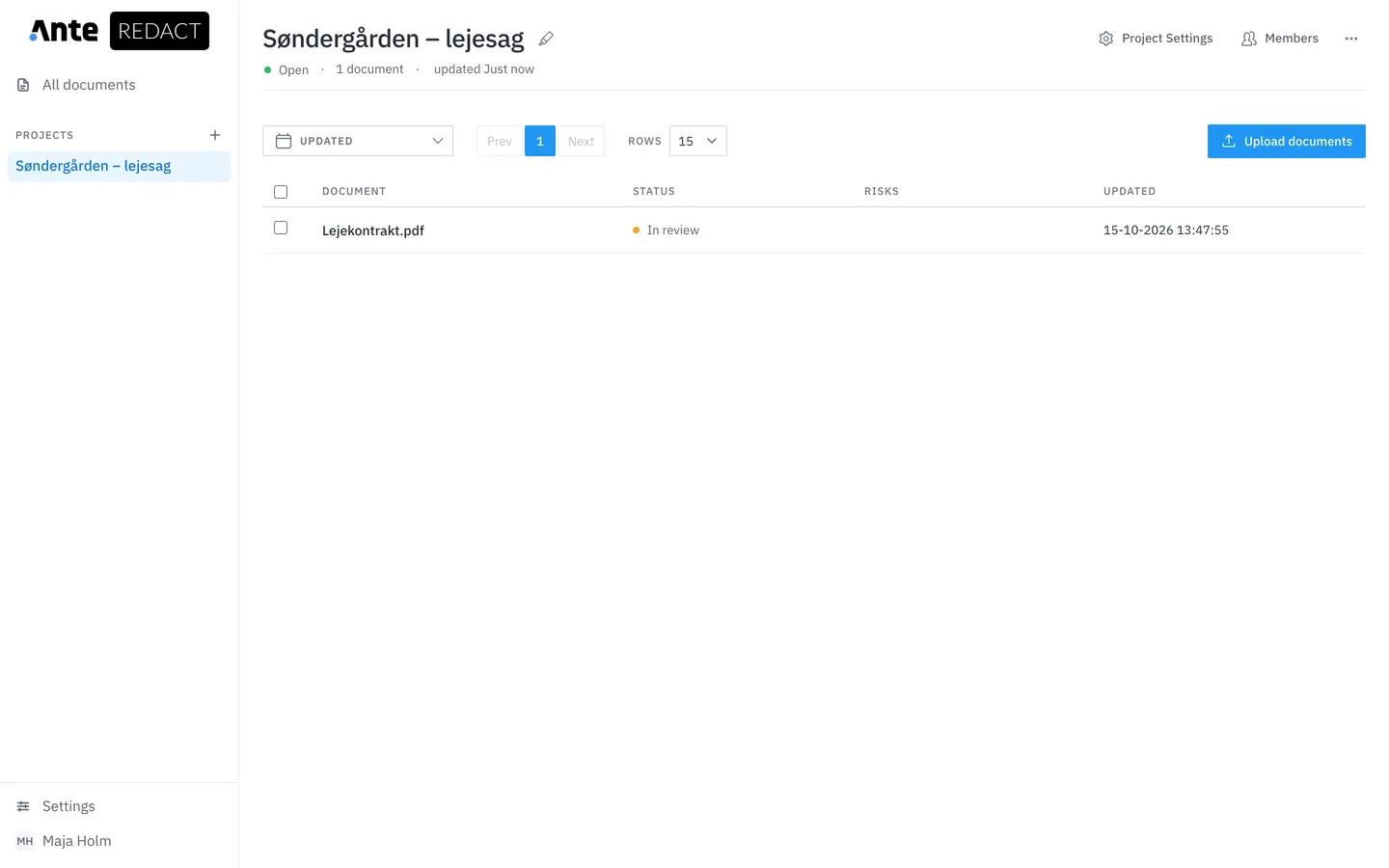
Documents you upload from the project’s page, with Upload documents or by dropping them onto the list, are placed in the project and redacted with the project’s settings.
The list works just like All documents, with the same statuses and actions.
Project settings
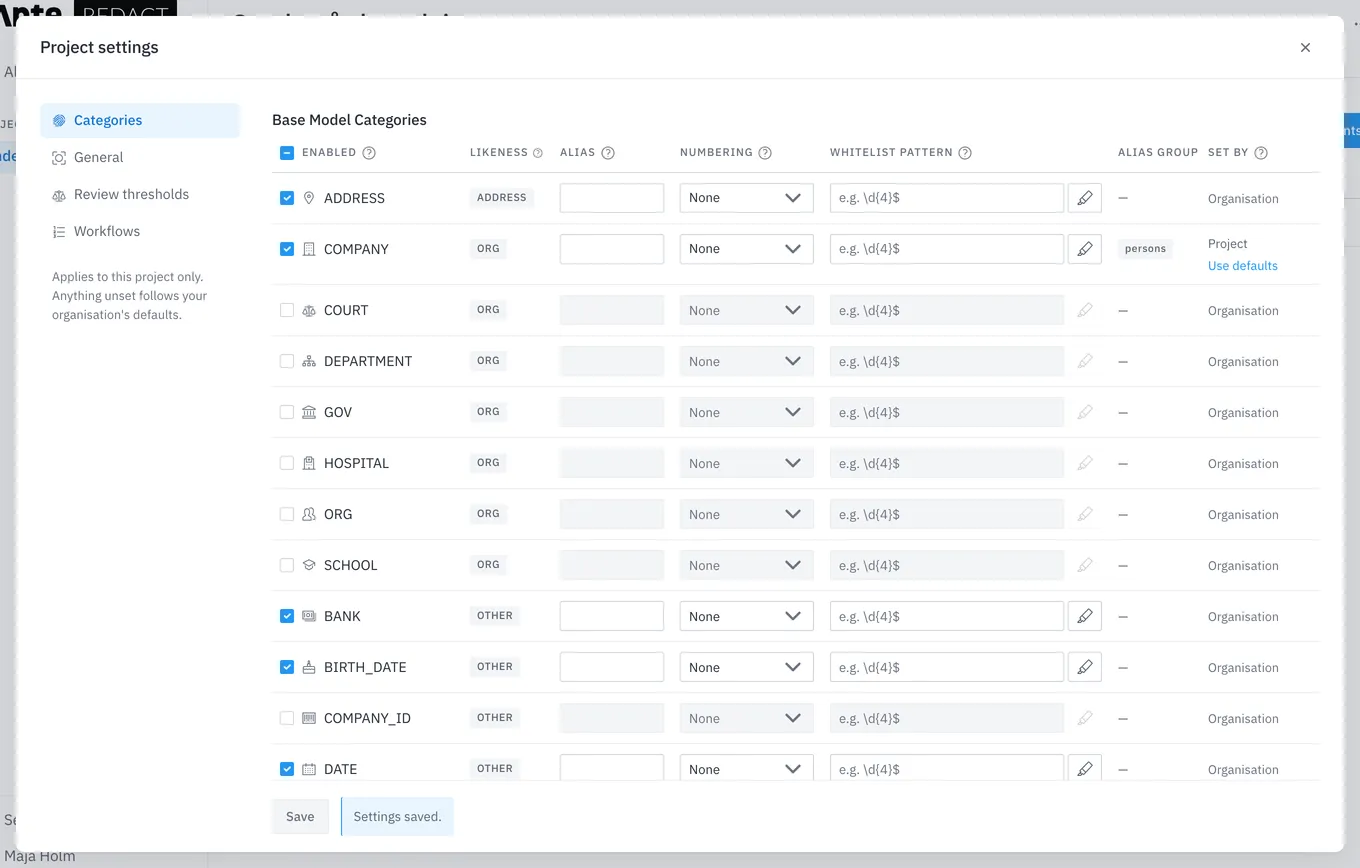
Under Project Settings you adjust how the project’s documents are redacted: categories, general settings, review thresholds and workflows.
Anything you do not change follows your organisation’s default, even if the default changes later. The Set by column shows where each setting comes from: “Organisation” or “Project”. Use defaults returns a setting to the default.
Give colleagues access
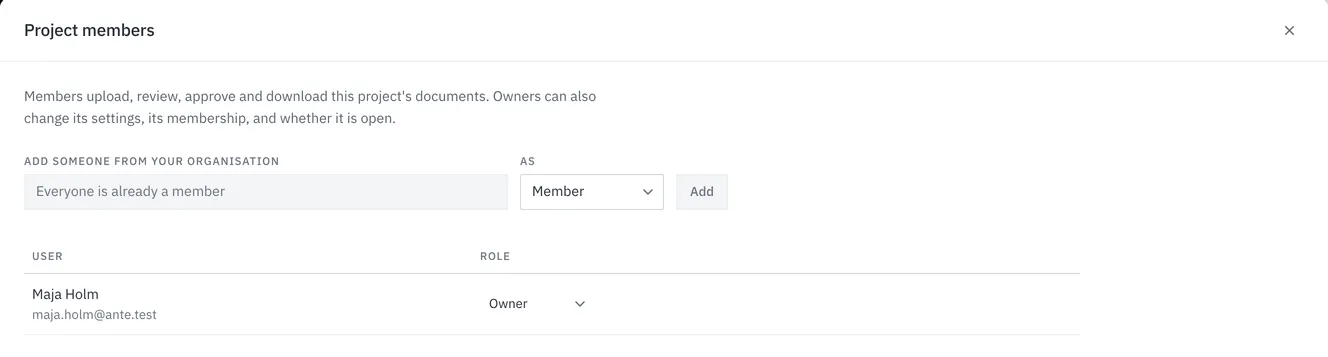
Under Members you give colleagues from your organisation access to the project: pick a person and a role, and click Add.
- A Member uploads, reviews, approves and downloads the project’s documents.
- An Owner can also change the project’s settings and members, and whether the project is open or closed.
- Whoever creates the project becomes its owner. A project always has at least one owner.
Close the project
When the case is done, close the project from the … menu at the top right with Close project.
Its documents can still be opened and downloaded, but nothing in the project can change until it is reopened with Reopen project in the same menu.