Binder: bundle a case into one PDF
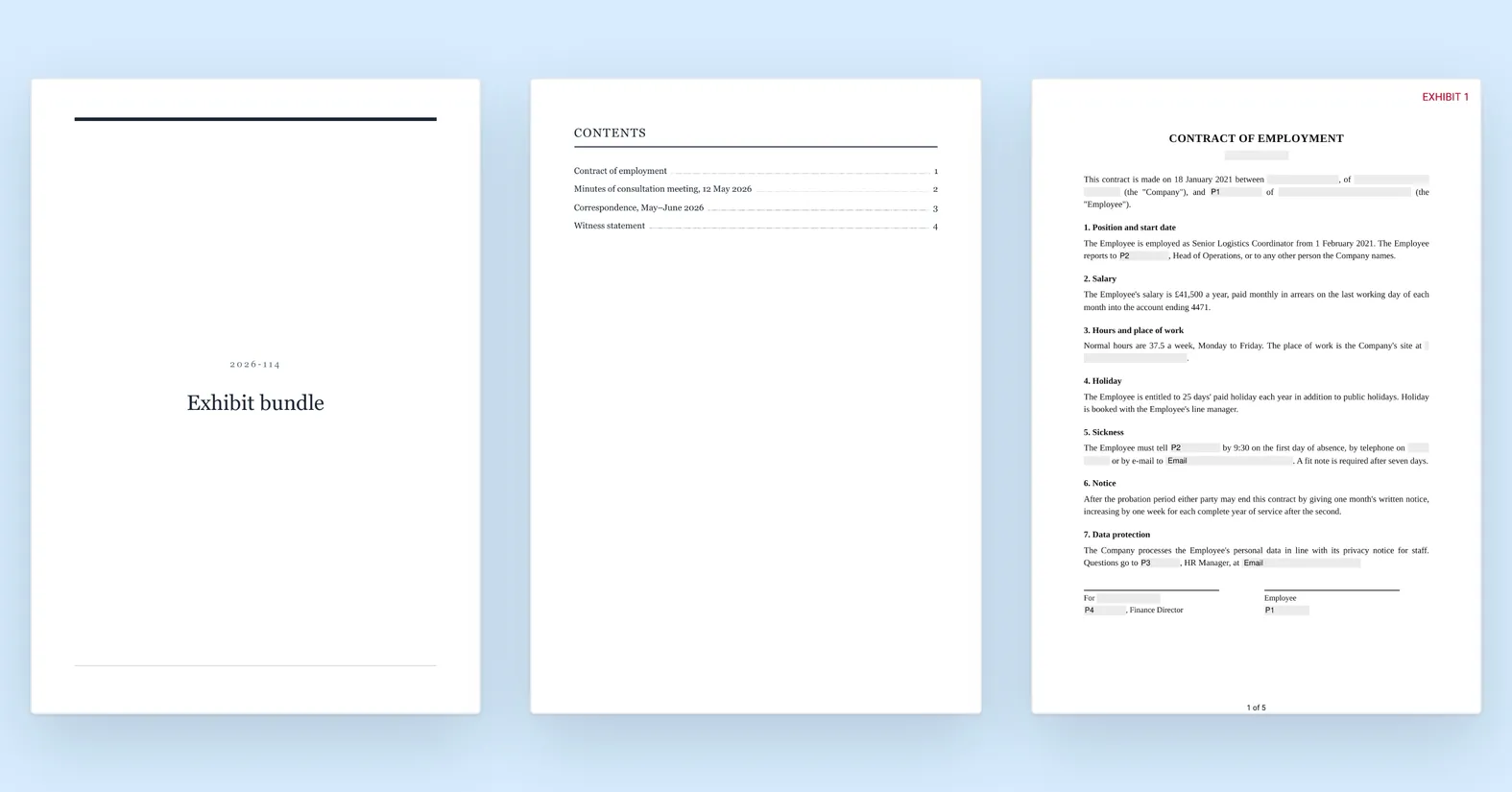
Binder turns a project’s redacted documents into one PDF: a cover, a table of contents, page numbers, an exhibit stamp on each document and a bookmark for each. Here is how to build one, keep it current, and download it.
Start a binder from the project
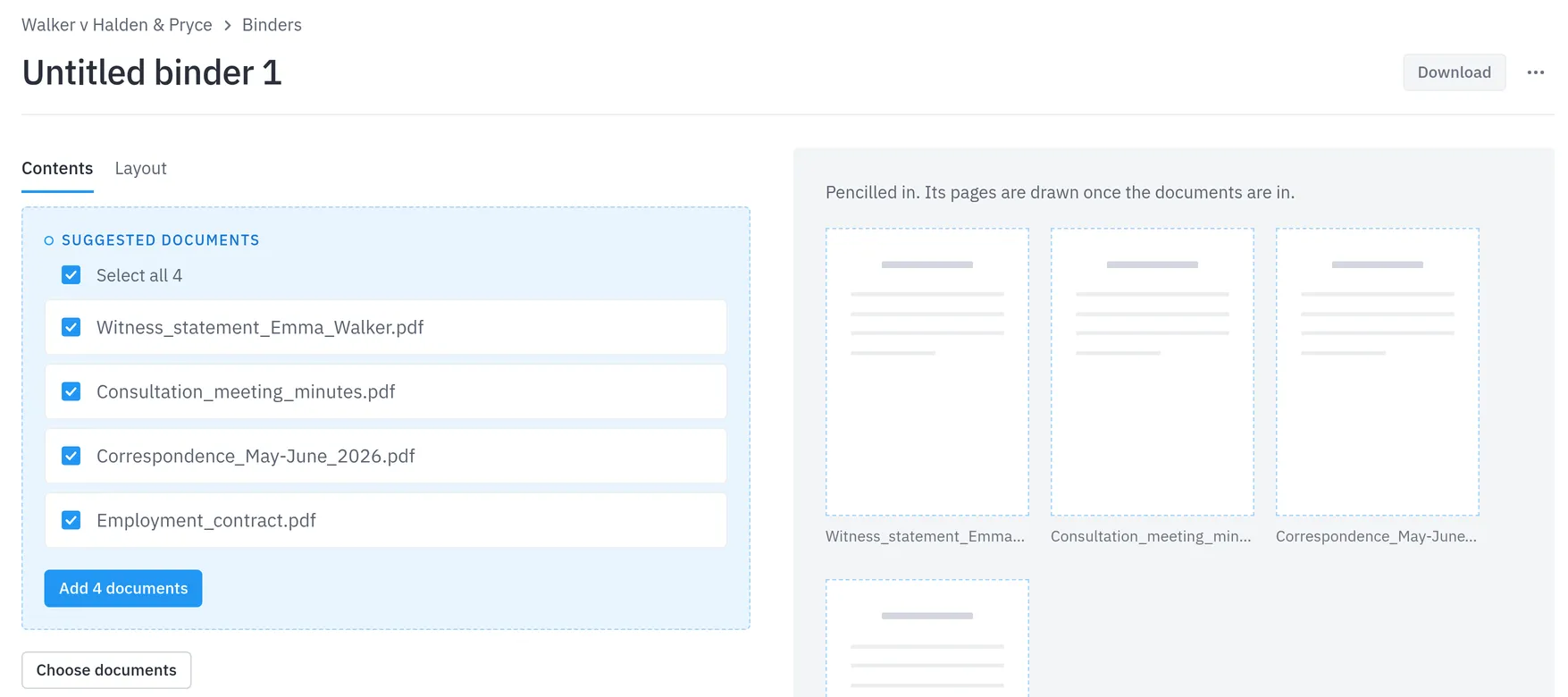
Click New binder on the project page. An empty binder suggests every document in the project that is ready, already ticked, so one click on Add … documents fills it. Documents still In review must be approved first.
Files that need no redaction, such as public rulings, can be uploaded from the binder itself and join the project too.
Put the documents in order
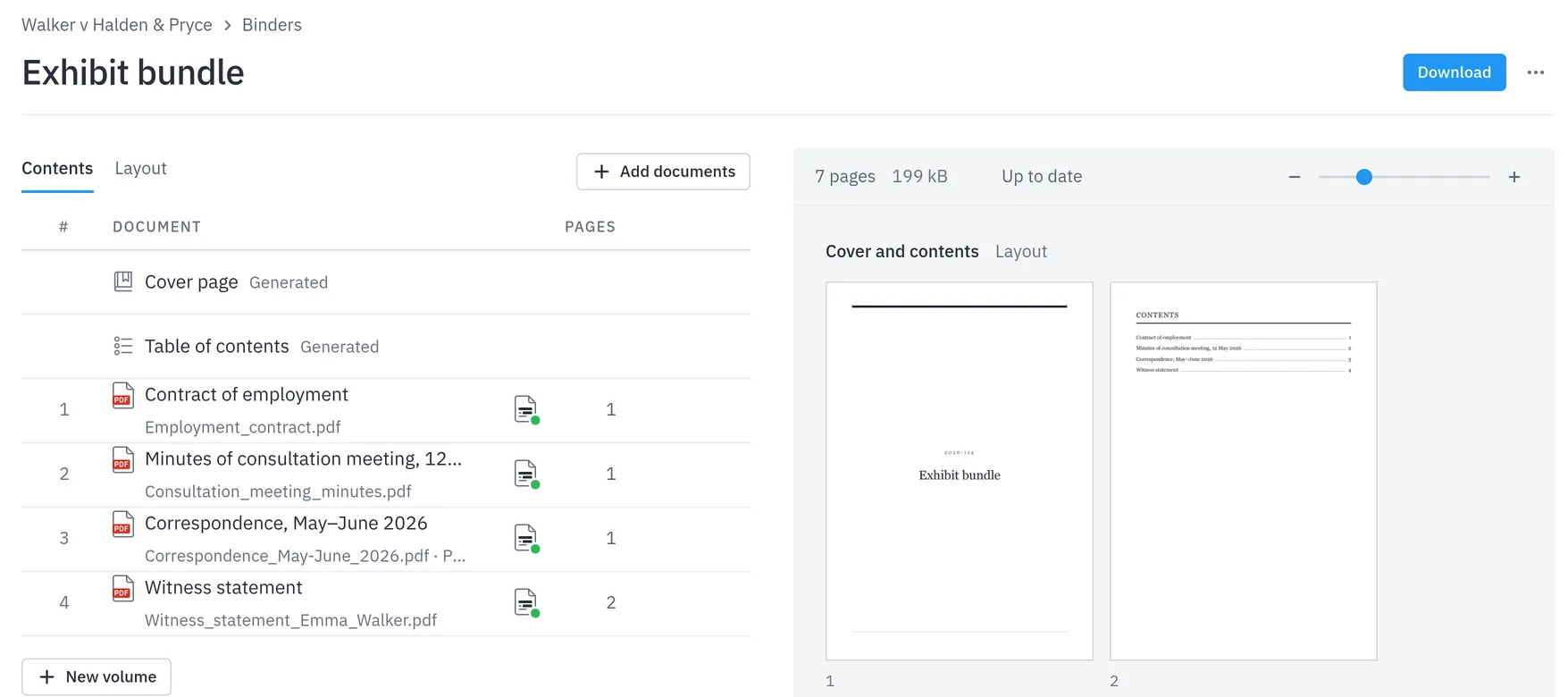
Drag a document to its place, or use the arrow keys on its handle. Give it a Title in the binder: the table of contents uses that, not the file name.
Split a large case into volumes with New volume.
Leave out a page
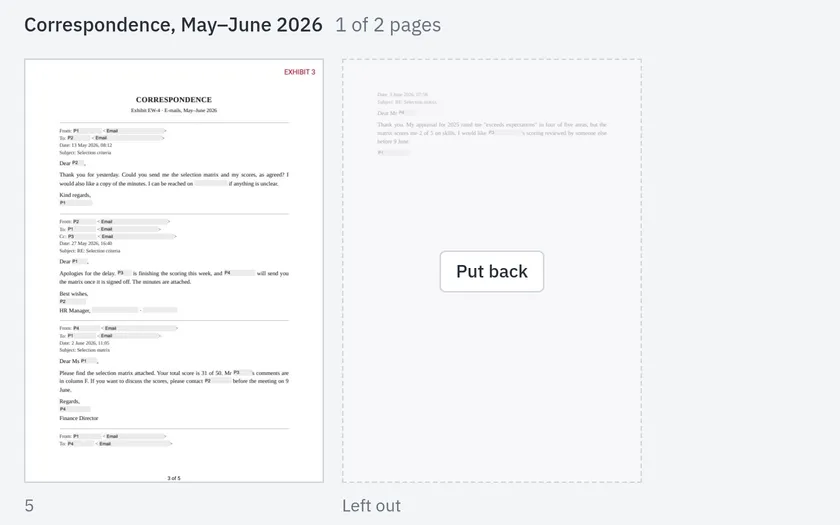
Click the ✕ on a page to leave it out of the binder. The page stays in view, faded, with Put back on it. The document in the project does not change.
Choose the layout
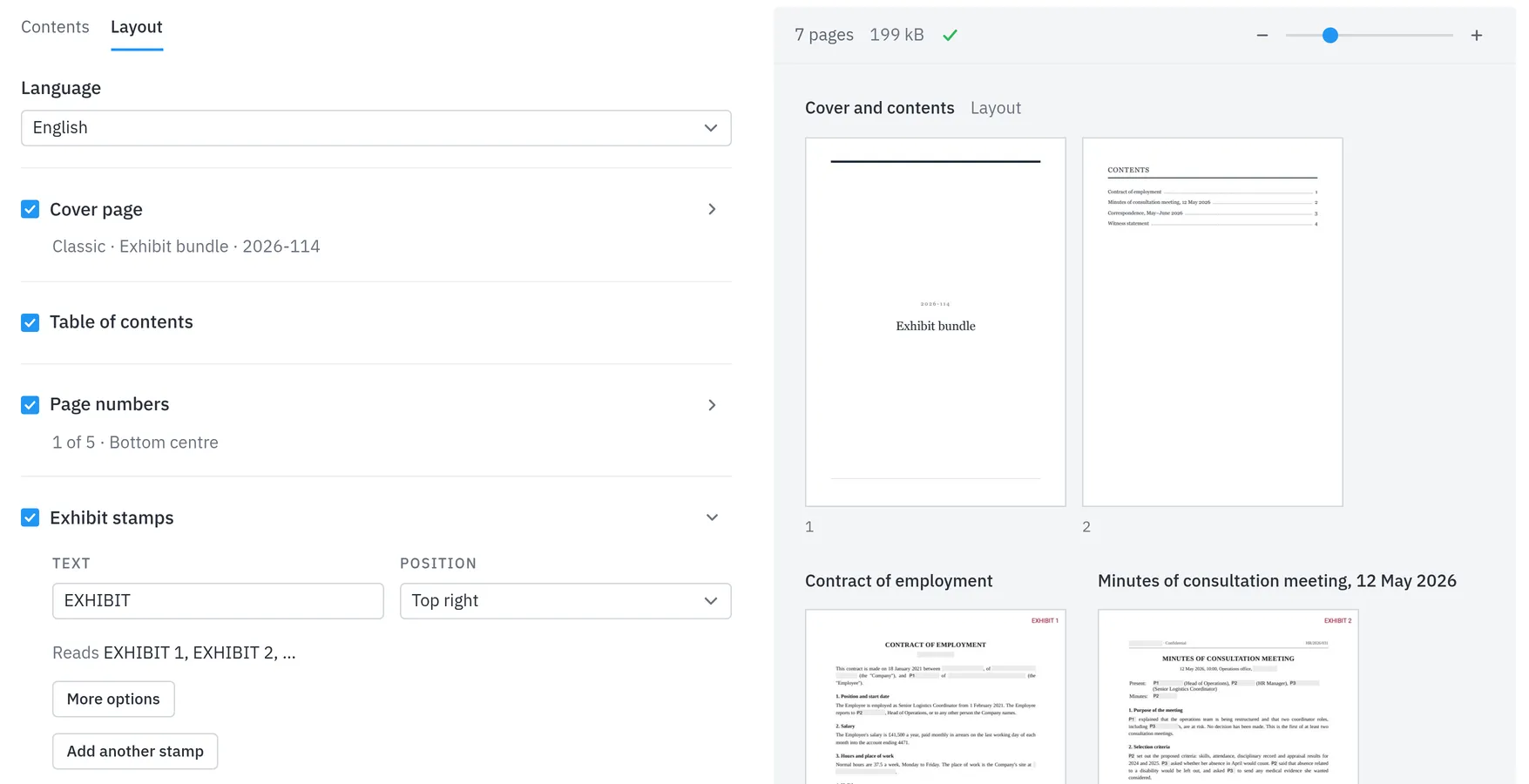
The Layout tab turns on the cover, table of contents, page numbers and exhibit stamps, plus margin markings and blank pages for double-sided printing.
The language sets the default texts: EXHIBIT in English, BILAG in Danish. Save a layout as a template and share it with your organisation.
Always up to date
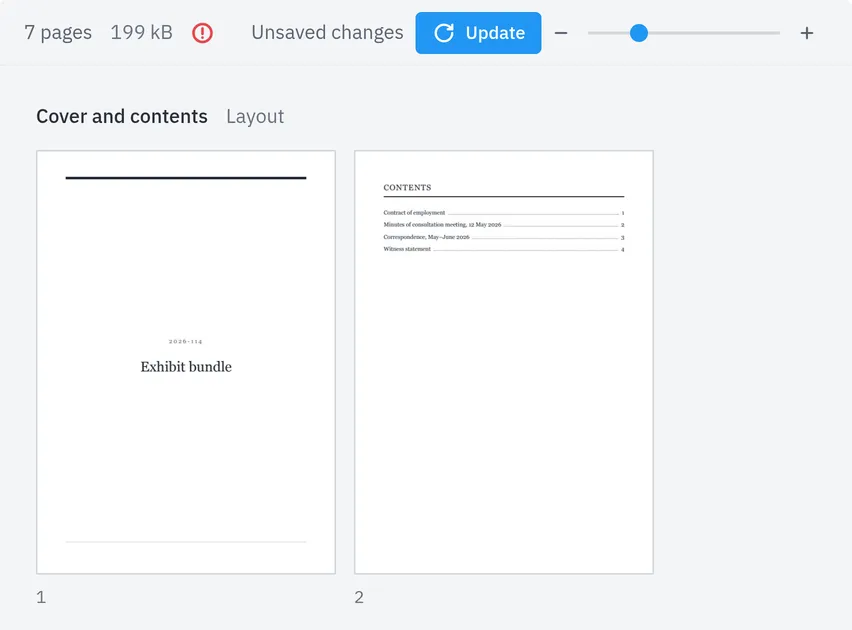
Changes show on the pages at once. Layout changes and new redactions reach the PDF a moment later. After you move, add or leave out documents and pages, the panel says Unsaved changes and offers Update.
Press it, or leave the binder, and the PDF catches up; Download waits until it has. If a document is redacted again in the project, the binder takes the new version, as long as it is not still in review.
Download one PDF
Download gives one PDF named after the binder: the cover and contents first, then each document with its exhibit stamp and page number, and a bookmark for each document.